
eCalendar

User Manual
User Manual
1. Module Introduction
1. Family Member Task Assignment
- Assign household chores, study, and fitness tasks to members (e.g., washing dishes, jumping rope, 30 minutes of daily piano practice).
- Flexible task cycle settings: one-time tasks, daily/weekly recurring tasks, suitable for habit formation scenarios (e.g., "1 hour of English listening daily").
2. Task Priority and Points
- Mark task priorities (high/medium/low) with colors to help family members arrange time reasonably.
- Customize task point rewards (e.g., "sweeping = 5 stars") to motivate members to complete challenging tasks.
3. Automated Reminders
- Push task reminders to avoid missing deadlines.
2. Task List
1. Members
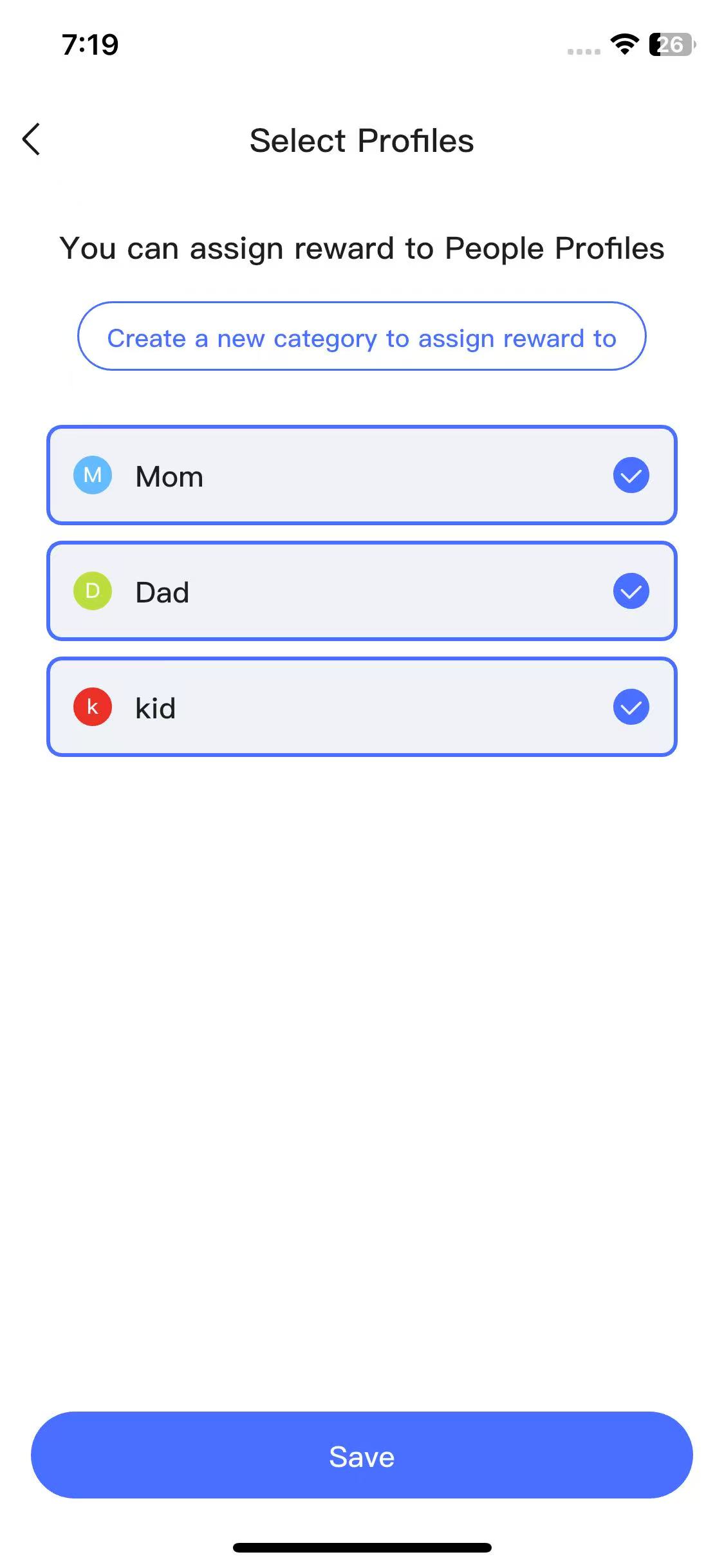
First-time users need to set up members and select members for task assignment.
2. Member Tasks
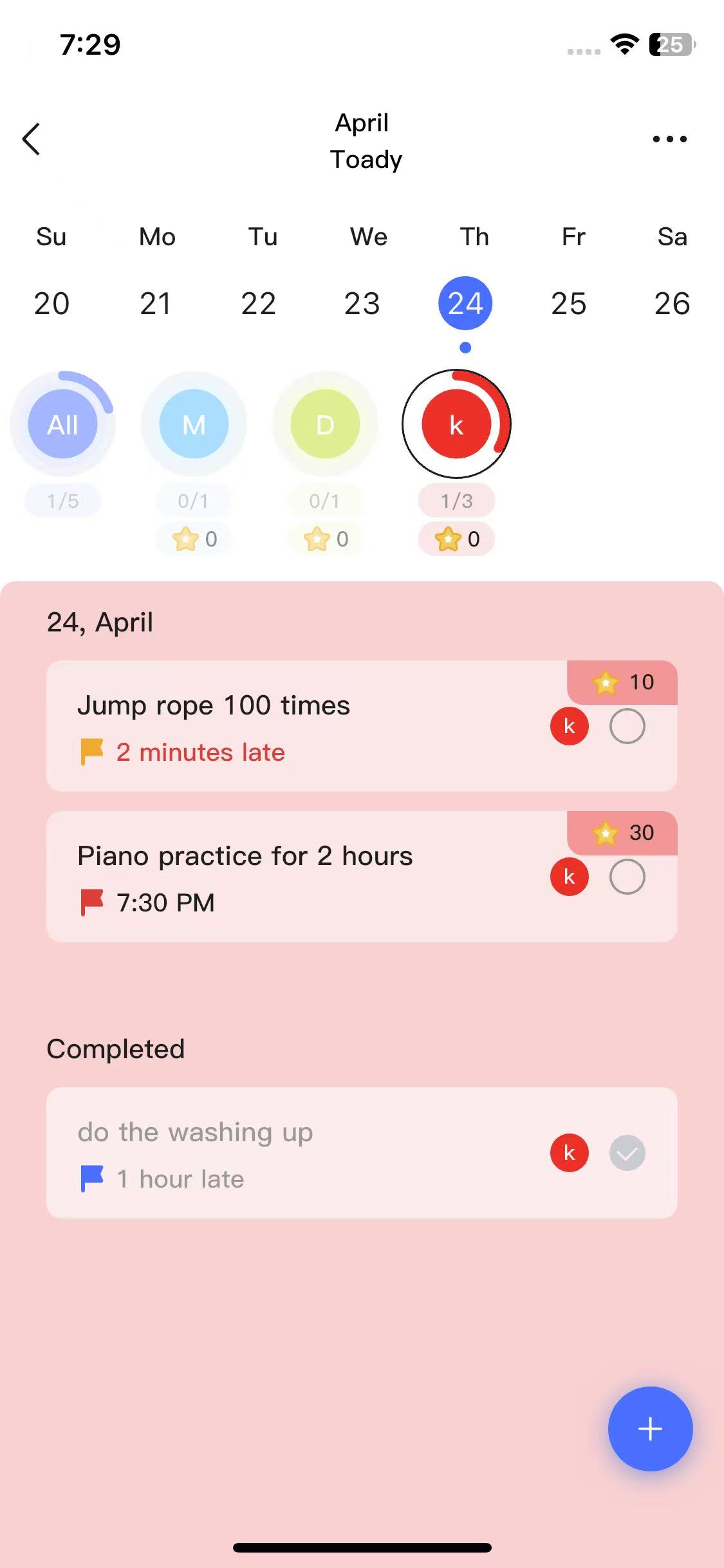
View each family member's daily tasks, task completion status, and star count.
3. Add Task
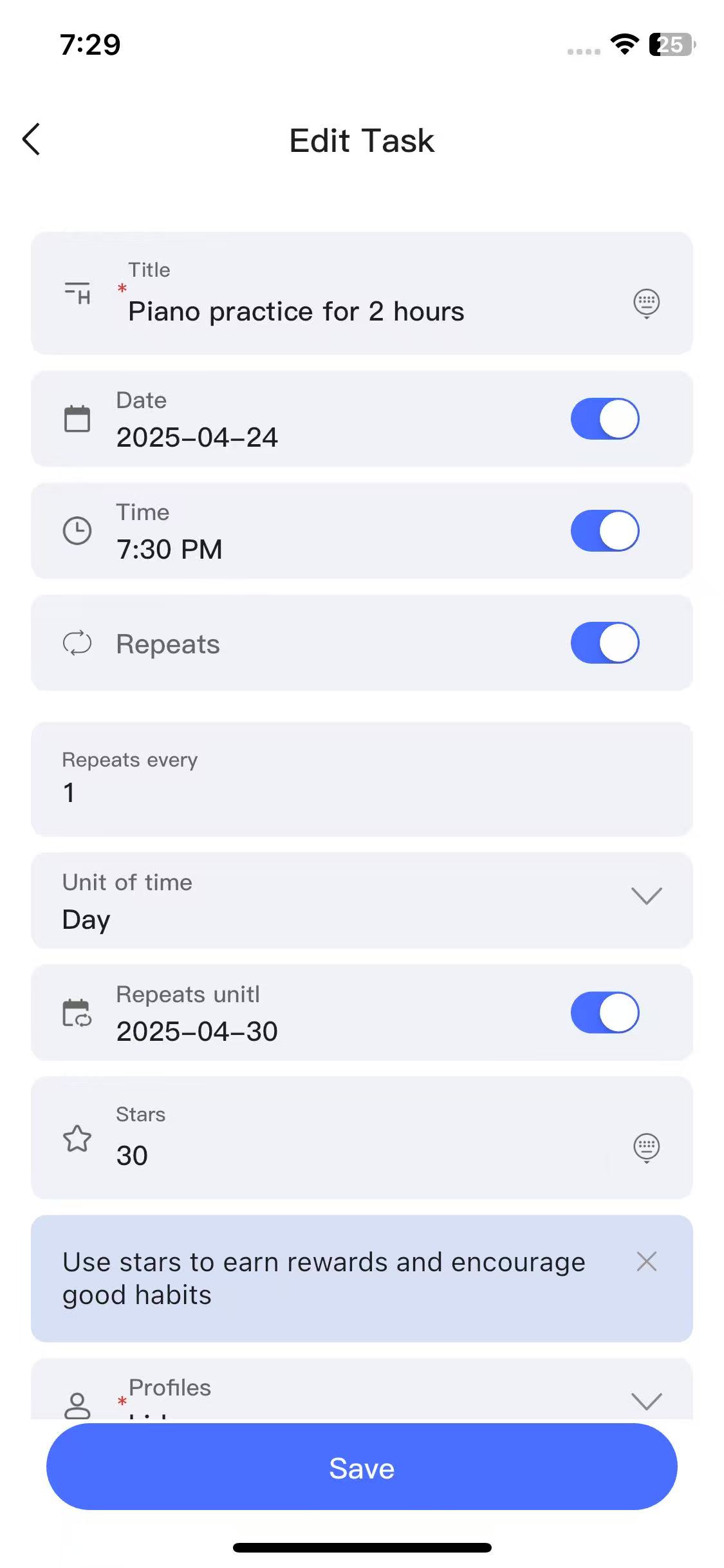
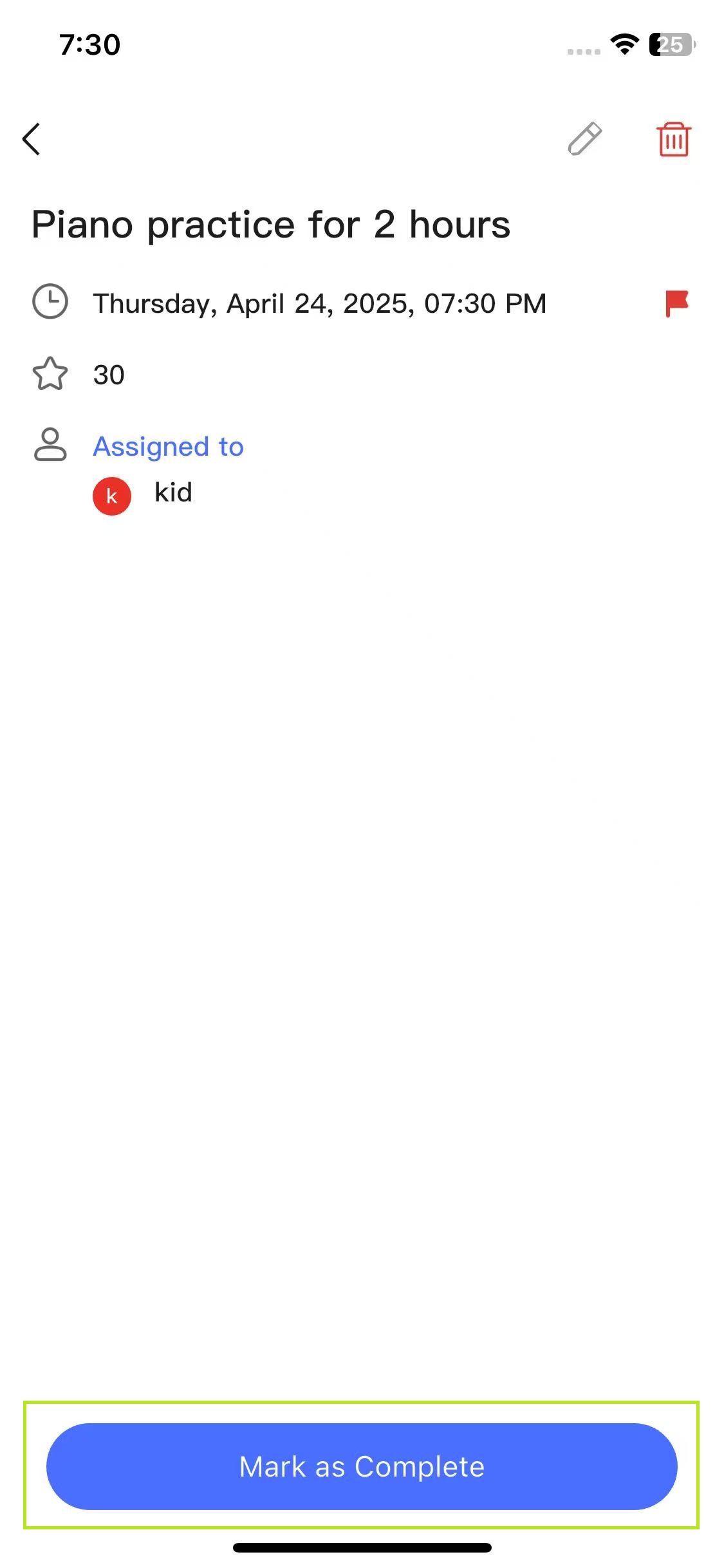
When adding a task, you need to fill in the task title, date (if turned off, it will show on any day), time (if turned off, it's an all-day status), repeat (can be set to repeat daily/weekly/monthly), stars (stars earned for completing the task), members (can select multiple), and priority (can choose high, medium, or low priority).
4. Complete Task
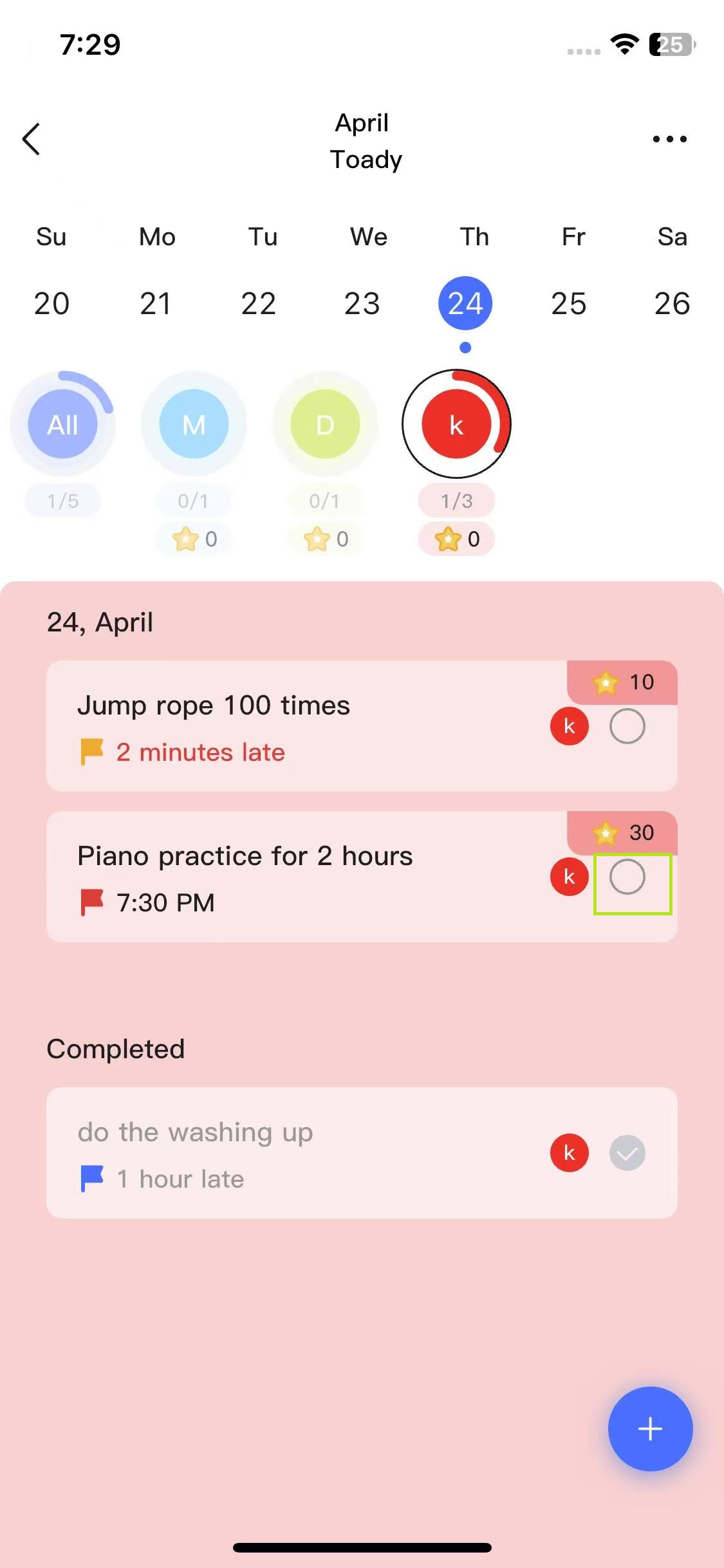
You can click to complete the task in the task list or task details, and receive the corresponding stars upon completion.
1. Module Introduction
1. Personalized Reward Store
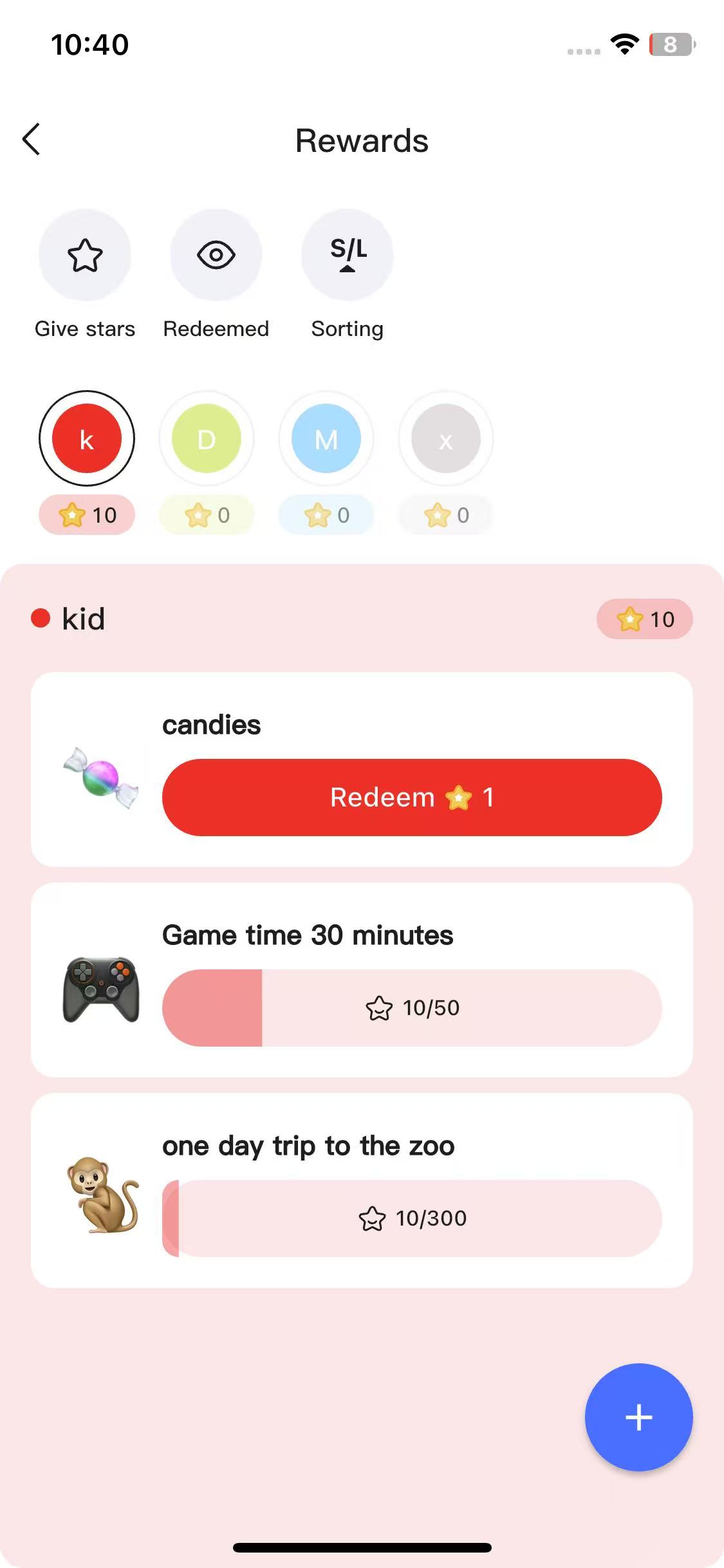
- Freely set reward rules: from small snacks (1 star for a lollipop) to experience rewards (100 stars for zoo tickets).
- Support long-term goal progress bar display (e.g., "save 50 stars for game time") to maintain motivation.
2. Transparent Point System
- Independent member accounts, real-time display of star accumulation progress and reward redemption status.
2. Reward List
1. Members
First-time users need to set up members and select members for reward assignment.
2. Member Rewards
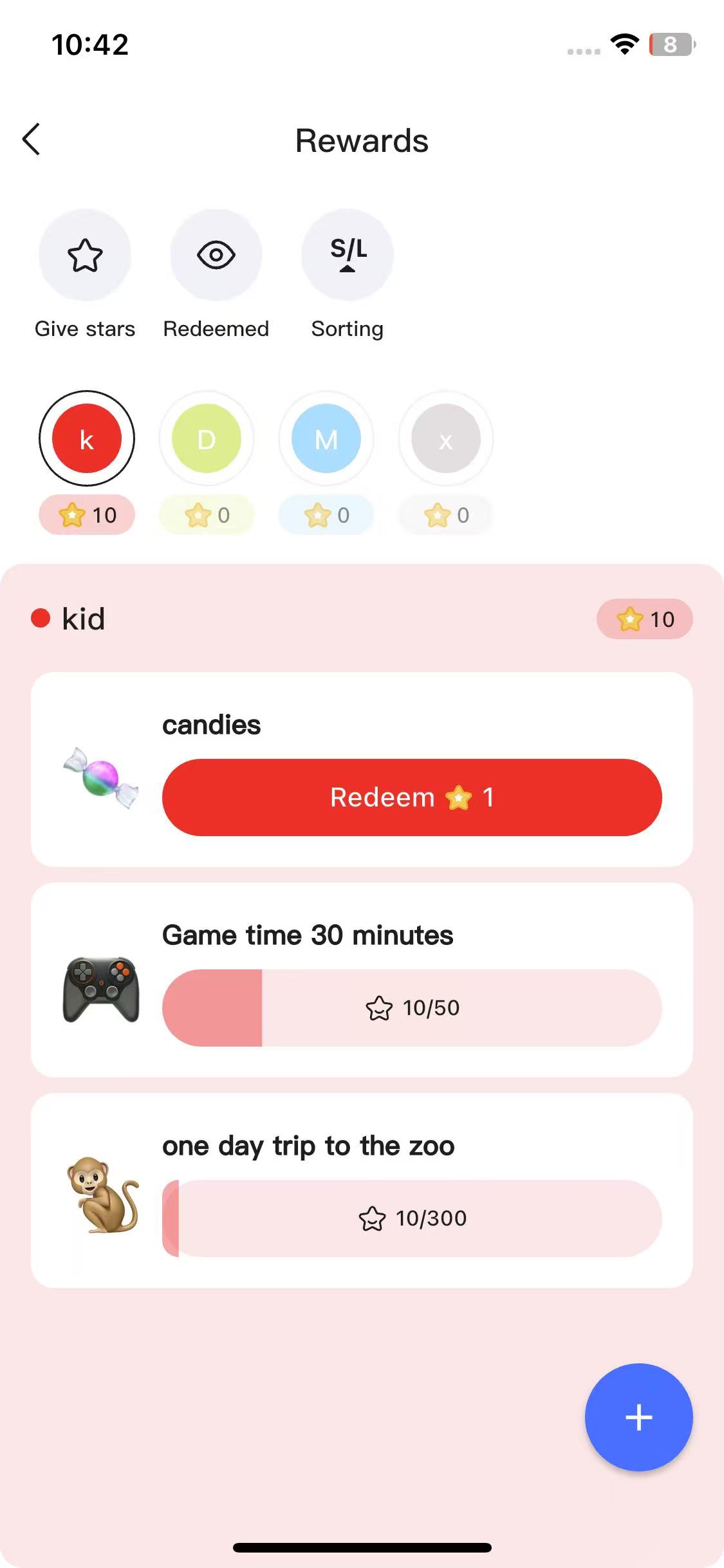
View each family member's reward redemption status and total star count.
3. Recurring Reward Rules
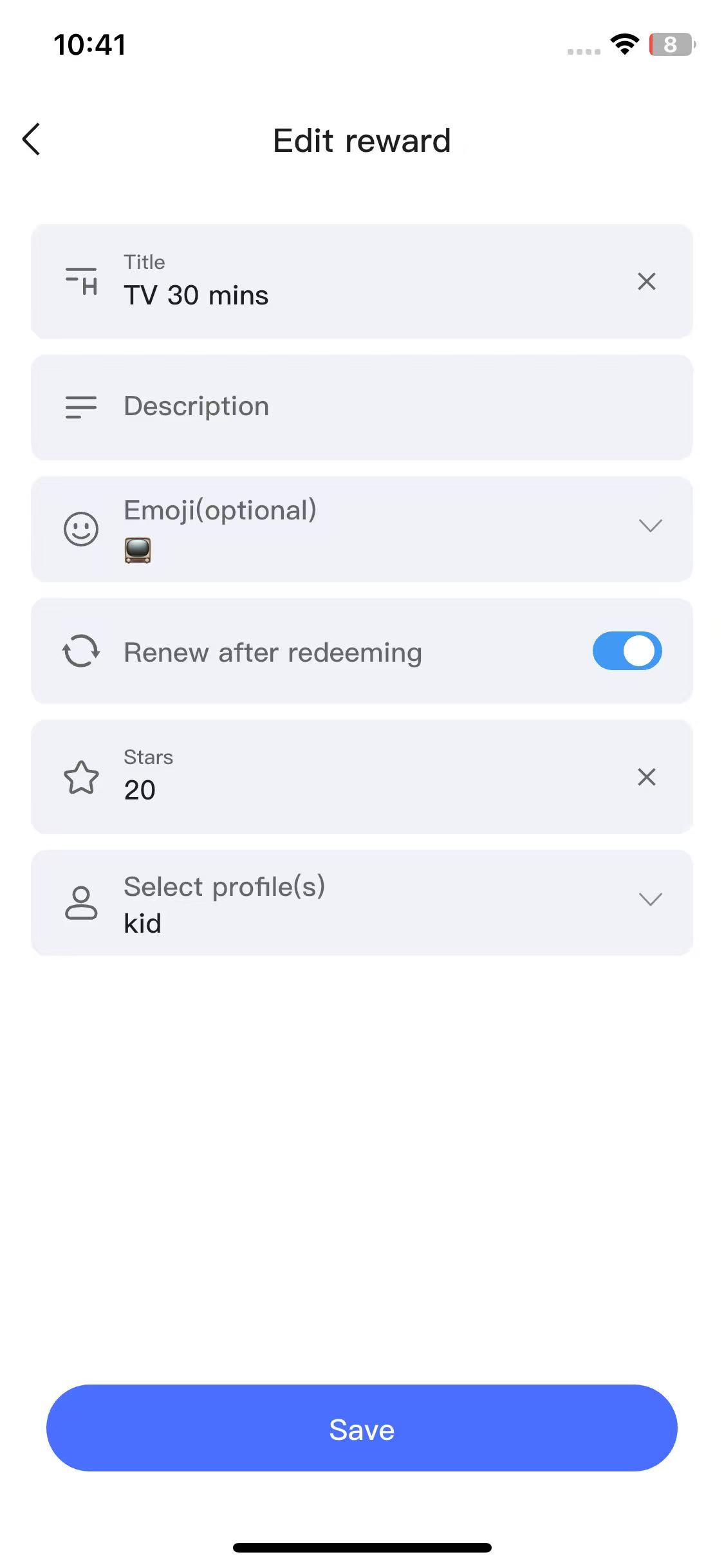
If recurring reward is selected when adding a reward, after completion, the reward will be shown in the completed list and a new reward task will be created (essentially keeping the original reward unchanged, allowing repeated redemption); if not a recurring reward, after successful redemption, the reward will move to the completed list and cannot be redeemed again.
3. Add Reward
You need to enter the reward title, description, emoji (can choose from the emoji library, if not selected, the default star icon will be used), star count, and whether to update after redemption (if enabled, stars can be redeemed repeatedly, equivalent to the system automatically creating a new identical reward after each completion).
4. Redeem Reward
When a member's star count is greater than or equal to the stars required for the reward, they can redeem it.
5. Give Stars
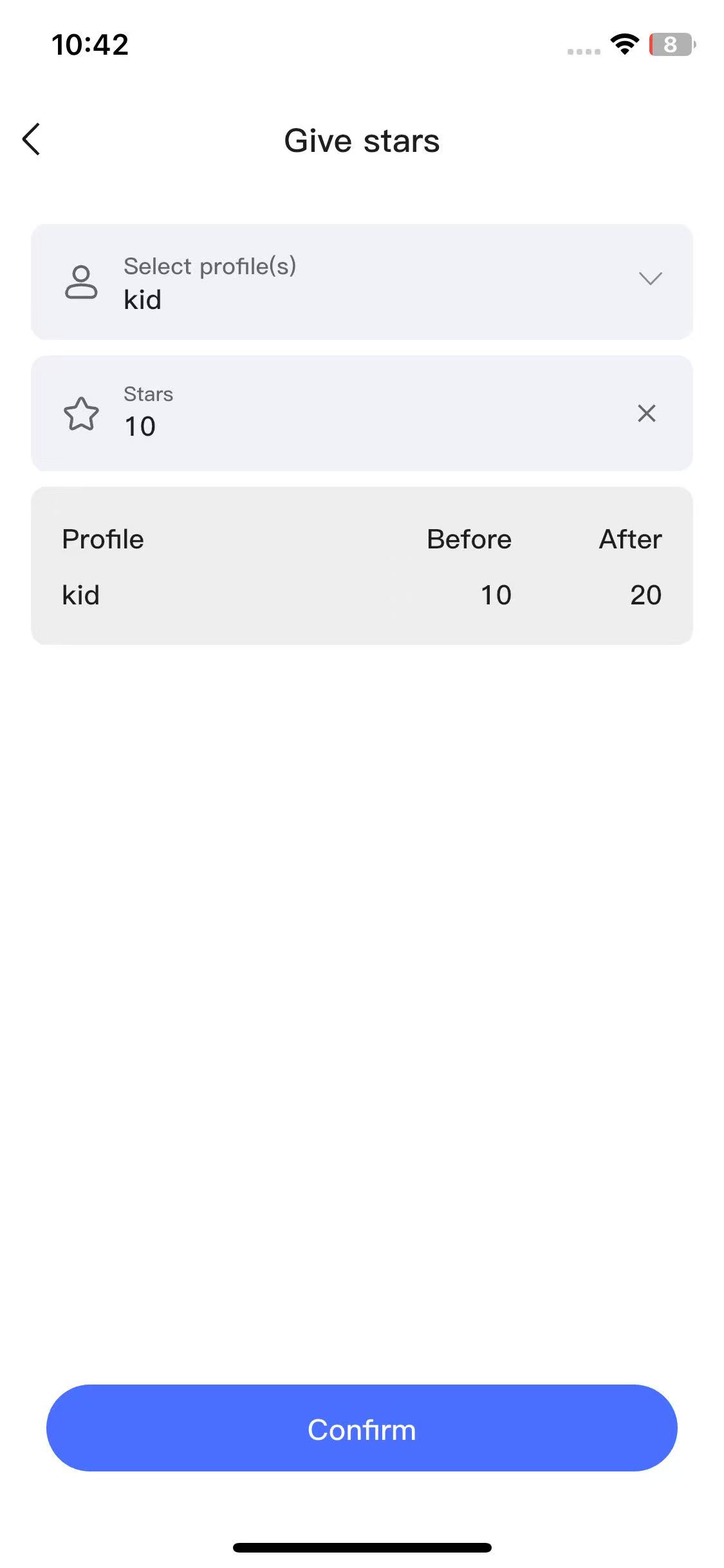
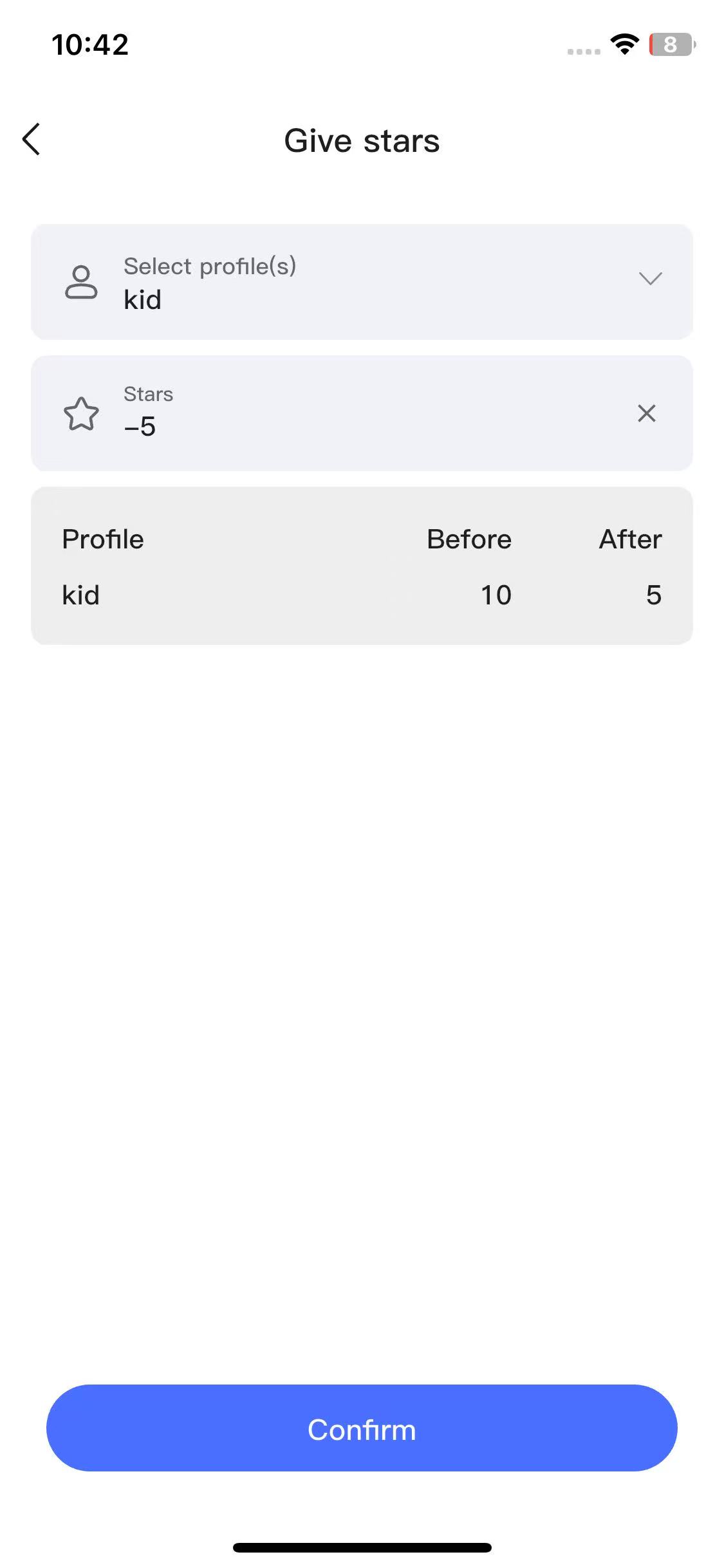
You can give members extra star rewards, such as 1 star for completing homework early, 10 stars for returning lost property. It can also be used as a punishment mechanism, such as deducting 1 star for careless homework completion.
eCalendar
Privacy & Terms
Privacy Policy
GDPR Compliance Statement
Contact Us
Email:support@myecalendar.com


Download on the App Store


Get it on Google Play
深圳市福驾科技有限公司 @ 版权所有 All rights reserved.粤ICP备18097481号-5